Checkout Field Editor Pro for WooCommerce ThemeHigh
- Type
- Theme
- Licence
- GNU GPL
- Delivery
- Instant download
- Access
- 12 months, or lifetime
- Sites
- Unlimited
Checkout Field Editor for WooCommerce
The Best WooCommerce Checkout Manager – Easily customize checkout fields on your WooCommerce checkout page.
Get a Clean & New Checkout Page with Themehigh’s Woocommerce Checkout Manager.
Modify, add, edit or delete the default and custom fields or create new sections for a clean and organised checkout page with the WooCommerce Checkout manager.
Key Features
Create Additional Checkout Fields & Sections
Add custom fields and sections to your checkout page
24 Custom Checkout Field Types
Provides twenty four different field types for your checkout form
Choose Price Type
Choose the price type for the fields from the list
Display Fields & Sections Conditionally
Show fields and sections based on specific conditions
Repeat Fields & Sections Conditionally
Repeat fields and sections based on specific conditions
Manage Fields Display
Manage the display of fields in emails and order display pages
Rearrange Checkout Fields
Rearrange the default and custom checkout fields based on your needs
WPML Compatibility
Provides WPML compatibility feature
Import & Export fields and sections
You import and export the data of the plugin anywhere you like
Custom Checkout Fields
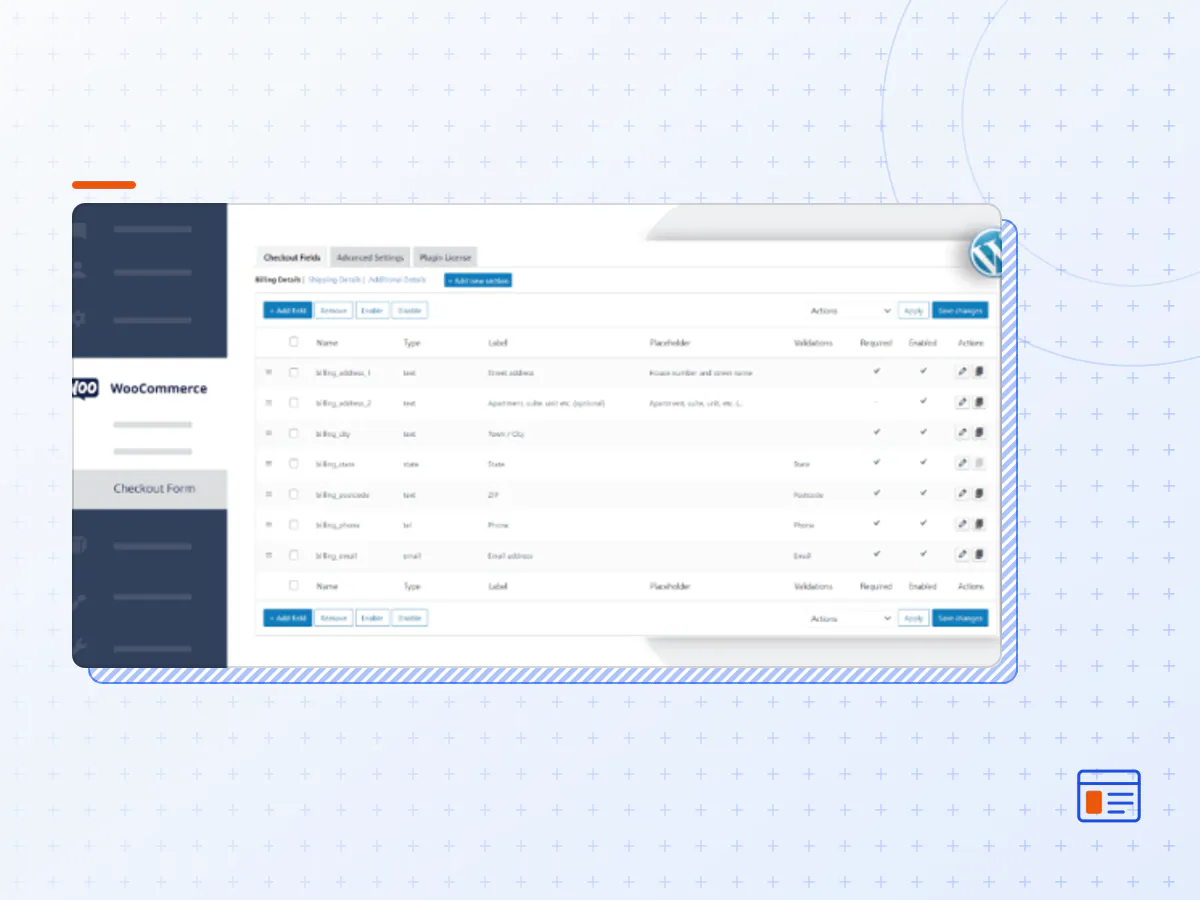
Get the required information from the shoppers by adding new fields to your WooCommerce checkout page. It allows you to edit, remove, and rearrange both the custom and default fields as per your need.
The Checkout Field Editor plugin also provides you several customization options for the WooCommerce default and custom fields. You can change the label name, add field description, placeholder, validations, label class, input class, and much more.
24 Custom Checkout Field Types
This plugin provides you 24 different field types for the custom fields
- Text
- Hidden
- Password
- Telephone
- Number
- Textarea
- Select
- Multi-Select
- Radio
- Checkbox
- Checkbox Group
- File Upload
- Date Picker
- Time Picker
- Datetime local
- Date
- Month
- Time
- Week
- URL
- Heading
- Label
- Paragraph
Create Section
Section is a group of related fields. Like the billing section and the shipping section, you can create a new section by grouping custom created fields together as a separate individual section. You can customise them and set the display position of the custom made section at 14 different positions in your checkout page.
Display Fields & Sections Conditionally
The Checkout Field Editor For WooCommerce plugin lets you display the fields and sections based on specific conditions. You can decide as to when the custom field should appear in your checkout page. You can select conditions when it must show/hide subjected to conditions. They can be displayed based on the shopper’s cart details, user roles, and product specifications. You can also display the sections based on the field values.
Repeat Fields & Sections
This plugin offers a unique feature where you can repeat the fields and sections in the checkout form based on specific conditions. You can make the fields reappear or repeat itself subjected to recurring conditions. When the given conditions are met, the corresponding fields or sections get displayed. Also, you can set repeat rules based on product quantity and cart count.
Alter Pricing Using Price Field
Fields for altering the present pricing method can be set choosing a condition that you want. Fields to display additional charges with respect to your requirement can be done here.
Custom Address Fields & Override option
You can create fields and customise the address format. With the advanced setting option, you can override the default address format and change field settings so that it works correctly as you want it.
You can also enable the address auto-fill option enabling Google API from advanced settings.
Custom validators and Confirm validators
At checkout you can place fields for validating user entered data by defining rules with regular expression formats as field values.
In addition to that you can also have additional fields or duplicate these with confirm validators which can be used as confirming the already entered data.
Show/Hide The Fields & Set Field Display Position
You can decide where these fields should be displayed based on your preference. You can Show/Hide the checkout fields in different places like in admin emails, customer emails, order display page, and in the thank you page.You can also set the position of the custom fields in Emails.
Developer Friendly With Custom Hooks
Helps the developers to use the hooks for the checkout fields to extend the field’s functionality
Zapier Support
Connect the plugin with Zapier to link with different business applications and bring automation to your daily tasks
Multilingual Support
The Checkout Field Editor plugin is WPML compatible that lets you translate the labels and placeholders of various fields to any language.
Backup & Import Settings
Export, import and backing up of all fields including custom fields are available. With UI friendly features, it enables duplicating fields, copying fields from other sites and also reverting fields, all possible with ease
- The Checkout Field Editor Pro for WooCommerce theme package as the developer released it.
- The installable theme .zip, plus whatever else the developer ships with it — often a child theme and documentation.
- GPL licensing: use it on as many sites as you like, for yourself or for clients.
- A year of downloads and newer versions with a single purchase, or permanent access with the lifetime upgrade.
- Also unlocked by every membership plan, together with the rest of the theme catalogue.
Not included
- A licence key from the developer — demo importers or bundled-plugin updates that check a key on the developer's servers may need manual steps.
How to install Checkout Field Editor Pro for WooCommerce
- 1Download Checkout Field Editor Pro for WooCommerce from Downloads in your account.
- 2If the download holds several files, unzip only that outer package and find the installable theme .zip (usually named after the theme).
- 3In WordPress open Appearance → Themes → Add New Theme → Upload Theme, choose that .zip and click Install Now.
- 4Activate the theme. If it recommends companion plugins, install them from the notice it shows.
- 5Optional: import the demo content from the theme's own setup screen, then replace the demo text and images with yours.
Using a child theme keeps your custom CSS and template edits safe when you upload a newer version of the parent theme.
Is Checkout Field Editor Pro for WooCommerce the original theme?
Yes — the package is the developer's release, unmodified, redistributed under the GNU GPL. WordPress GPL sells the download and updates; it does not issue vendor licence keys.
Will the Checkout Field Editor Pro for WooCommerce demo import work?
Usually, yes. Most demo importers run inside WordPress. A few download demo files from the developer's servers and check a licence key first; in that case you can still build the pages yourself with the bundled templates.
How do theme updates work?
When a newer version of Checkout Field Editor Pro for WooCommerce reaches our catalogue it replaces the file in your account. Upload it over the current theme (Appearance → Themes → Add New Theme → Upload Theme) and WordPress replaces it while keeping your settings.
What if the theme doesn't work?
Contact us with your order number. If the file is broken or clearly not what this page describes and we can't fix it, you get a refund within 14 days of purchase.